Your security cameras are only as reliable as the WiFi network behind them. A camera with a weak or congested connection will deliver choppy footage, delayed alerts, and missed events — exactly the moments you bought the camera to capture. If you are running two or more WiFi cameras, your router is the single most important piece of your surveillance setup.
We tested dozens of routers with multi-camera systems to find the best options for home security in 2026.
Why Cameras Need Better WiFi Than Most Devices
A smartphone streaming Netflix uses bandwidth in short bursts. A security camera streams video continuously, 24 hours a day, while simultaneously uploading motion clips to the cloud. That is a fundamentally different demand on your network.
Here is what each camera actually requires:
| Camera Resolution | Download (Live View) | Upload (Cloud Recording) | Per Camera Bandwidth |
|---|---|---|---|
| 1080p | 2-4 Mbps | 2-4 Mbps | 4-8 Mbps |
| 2K (1440p) | 4-8 Mbps | 4-8 Mbps | 8-16 Mbps |
| 4K | 8-16 Mbps | 8-16 Mbps | 16-32 Mbps |
These numbers are per camera. Four 2K cameras running simultaneously need 32-64 Mbps of dedicated bandwidth, and more importantly, consistent upload throughput that many home internet plans struggle to provide.
Beyond raw bandwidth, cameras need low latency for real-time alerts and stable connections that do not drop for even a few seconds. A dropped connection during a critical event means missing footage you cannot get back.
What to Look for in a Camera-Friendly Router
WiFi 6 or WiFi 6E
WiFi 6 (802.11ax) is the minimum standard you should consider. It handles multiple simultaneous devices far better than WiFi 5 thanks to OFDMA (Orthogonal Frequency Division Multiple Access), which lets the router communicate with several cameras at the same time instead of one at a time.
WiFi 6E adds the 6GHz band, which is completely uncongested. While most cameras still operate on 2.4GHz or 5GHz, moving your phones, laptops, and tablets to 6GHz frees up enormous bandwidth on the lower bands for your cameras.
QoS (Quality of Service)
QoS lets you prioritize traffic from security cameras over less critical devices. When your teenager is downloading a game while three cameras are recording a motion event, QoS ensures the cameras get their bandwidth first. Look for routers that offer device-level or application-level QoS, not just simple “high/medium/low” toggles.
MU-MIMO
Multi-User, Multiple-Input, Multiple-Output allows the router to send data to multiple devices simultaneously. For camera systems, this means your router can stream to four or five cameras at once without each one waiting in line. Look for at least 4x4 MU-MIMO on the 5GHz band.
Strong 2.4GHz Performance
This is counterintuitive: in a world of WiFi 6E and 6GHz bands, the 2.4GHz band is still the workhorse for security cameras. Most outdoor cameras — Ring, Arlo, Blink, Wyze, Reolink — connect exclusively on 2.4GHz because it offers better range and wall penetration than 5GHz. A router with a strong 2.4GHz radio and good antenna design is essential. Not sure which cameras to pair with your router? See our best security cameras of 2026 roundup.
How Many Cameras Can Your Router Handle?
A general guideline based on router class:
| Router Type | Recommended Max Cameras | Notes |
|---|---|---|
| ISP-provided router | 2-3 | Upgrade immediately if running more |
| Mid-range WiFi 6 | 5-8 | Adequate for most homes |
| High-end WiFi 6/6E | 8-12 | Handles heavy loads with QoS |
| Mesh system (3-pack) | 10-16 | Best for large homes and properties |
These numbers assume you are also running typical household devices (phones, laptops, streaming sticks, smart speakers). If cameras are your only significant bandwidth users, you can push the numbers higher.
Our Top Router Picks for Security Cameras
1. eero Pro 6E — Best Overall for Camera Systems
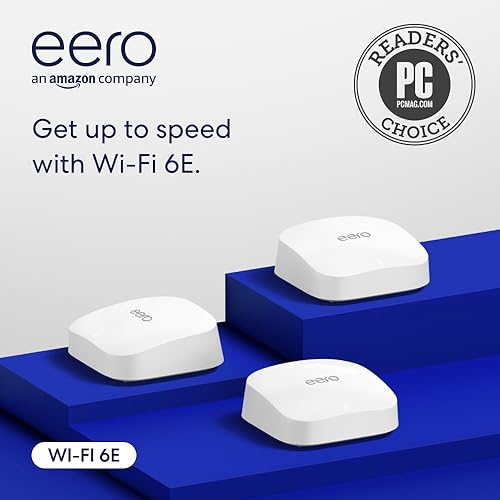
- Tri-band WiFi 6E with 6 GHz band
- Covers up to 2,000 sq ft per unit
- Up to 1 Gbps wired speeds
- Built-in Zigbee smart home hub
The eero Pro 6E is our top recommendation for homes running multiple security cameras. The tri-band WiFi 6E design keeps your cameras on dedicated bands while personal devices use the 6GHz channel, eliminating congestion entirely. Each eero Pro 6E unit covers up to 2,000 square feet, and a 3-pack blankets homes up to 6,000 square feet with seamless roaming.
What makes it exceptional for cameras is the TrueMesh networking technology, which dynamically routes traffic through the strongest path. If one node is busy, camera traffic automatically shifts to a less loaded node. Setup through the eero app takes under 10 minutes.
Key specs: WiFi 6E tri-band, 2.4GHz + 5GHz + 6GHz, 1 Gbps Ethernet per node, Thread/Zigbee built-in, automatic QoS.
What We Like
- Tri-band WiFi 6E eliminates congestion for cameras
- TrueMesh dynamically optimizes camera traffic
- Dead-simple setup through the eero app
- Built-in Zigbee/Thread hub for smart home devices
- Automatic updates and security patches
Could Be Better
- Premium price ($350-550 for 3-pack)
- Requires eero subscription for advanced security features
- Only one Ethernet port per node
2. TP-Link Deco XE75 — Best Value Mesh System
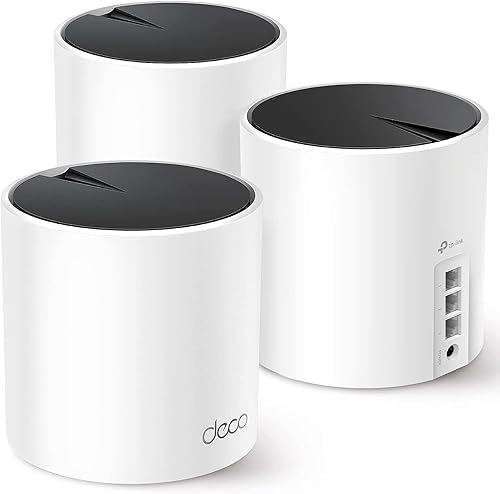
- Tri-band WiFi 6E with AXE5400 speeds
- Covers up to 7,200 sq ft (3-pack)
- AI-driven mesh technology for optimal routing
- TP-Link HomeShield built-in security
The TP-Link Deco XE75 delivers WiFi 6E mesh performance at a significantly lower price than the eero Pro 6E. A 3-pack covers up to 7,200 square feet, and the tri-band design provides a dedicated backhaul channel so your cameras are not competing with the mesh network itself for bandwidth.
TP-Link’s HomeShield app includes built-in QoS with device prioritization, which lets you flag your cameras as high-priority devices. In our testing, motion alerts arrived 1-2 seconds faster after enabling camera prioritization compared to the default settings.
Key specs: WiFi 6E tri-band, AX5400, 3 Gigabit Ethernet ports per node, AI-driven mesh, HomeShield QoS.
What We Like
- WiFi 6E performance at a mid-range price ($250-400 for 3-pack)
- 7,200 sq ft coverage with 3-pack
- 3 Ethernet ports per node for wired cameras
- Device-level QoS prioritization
- No subscription required for core features
Could Be Better
- App is functional but less polished than eero
- No built-in smart home hub
- 6GHz range is shorter than competitors
3. ASUS RT-AX86U Pro — Best Single Router
If your home is under 2,500 square feet and you do not need mesh, the ASUS RT-AX86U Pro is a powerhouse single router. It features Adaptive QoS that automatically detects and prioritizes security camera traffic, 2.5 Gbps WAN for fast internet plans, and one of the strongest 2.4GHz radios in any consumer router.
The AiProtection Pro security suite (powered by Trend Micro) is free for the lifetime of the router, adding network-level malware protection that keeps your cameras safe from IoT-targeted attacks.
Key specs: WiFi 6, AX5700, 2.5G WAN, 4x Gigabit LAN, MU-MIMO, AiMesh compatible, AiProtection Pro.
Best for: Single-story homes, apartments, or anyone who prefers a single router over a mesh system.
4. NETGEAR Orbi 960 (RBKE963) — Best for Large Properties
For large homes or properties with cameras spread across 5,000+ square feet, the NETGEAR Orbi 960 is the most capable system available. It is a quad-band WiFi 6E system with a dedicated 5GHz backhaul channel that delivers up to 2.4 Gbps between nodes. This means your camera traffic never competes with the mesh backbone.
It is expensive ($1,200-1,500 for a 3-pack), but for setups with 10+ cameras across a large property, nothing else matches its throughput and range.
Key specs: WiFi 6E quad-band, AXE11000, 10 Gbps WAN, dedicated backhaul, 9,000 sq ft coverage (3-pack).
Best for: Large homes, multi-building properties, and professional-grade camera installations.
Bandwidth Calculator
Use this quick formula to estimate your total camera bandwidth needs:
Total bandwidth = (Number of cameras) x (Per-camera bandwidth from the table above) x 1.3
The 1.3 multiplier accounts for overhead, re-transmissions, and peak usage spikes.
Example: 6 cameras at 2K resolution:
- 6 x 12 Mbps (midpoint of 8-16 Mbps range) x 1.3 = 93.6 Mbps
- Your internet plan’s upload speed needs to support at least 48 Mbps for cloud recording (6 x 8 Mbps)
- Your router needs to handle 93.6 Mbps of internal WiFi traffic without breaking a sweat
If your math shows you need more upload bandwidth than your internet plan provides, consider cameras with local storage (microSD or NAS) to reduce cloud upload demands.
Mesh vs. Single Router: Which Setup Is Better for Cameras?
Choose a mesh system if:
- Your home is larger than 2,000 square feet
- You have cameras on multiple floors or on the exterior of a large property
- You need to cover outdoor areas far from your router (detached garage, backyard, driveway)
- You have dead zones where cameras currently struggle
Choose a single router if:
- Your home is under 2,000 square feet
- All cameras are within 50 feet of the router
- You want the simplest possible setup with one device to manage
- You plan to use wired (PoE) cameras connected to a switch rather than WiFi
Router Placement Tips for Camera Systems
Where you put your router matters as much as which router you buy.
-
Central location, elevated position. Place the router on a high shelf or mount it on a wall in the center of your home. WiFi signals radiate outward and downward more effectively than upward.
-
Minimize walls between router and cameras. Each wall reduces signal strength by 3-6 dB. Exterior walls with brick or stucco are worse, cutting signal by 6-10 dB. If your camera is behind two exterior walls, a mesh node is almost certainly required.
-
Avoid interference sources. Microwaves, baby monitors, cordless phones, and Bluetooth devices all operate on or near 2.4GHz and can cause interference. Keep your router at least 3 feet from these devices.
-
Dedicated mesh node for outdoor cameras. Place a mesh node near the wall closest to your outdoor cameras. A node in a garage, mudroom, or window-facing shelf can dramatically improve signal strength for exterior cameras.
-
Use Ethernet backhaul when possible. If you can run an Ethernet cable between mesh nodes, do it. Wired backhaul frees up wireless bandwidth for your cameras and eliminates the mesh network’s biggest bottleneck.
Troubleshooting Camera WiFi Issues
Cameras buffering or showing low quality:
- Check the signal strength in your camera’s app (RSSI). Anything weaker than -65 dBm needs a closer access point.
- Switch the camera’s WiFi channel manually if your router allows it. Channels 1, 6, and 11 are the only non-overlapping 2.4GHz channels.
- Reduce the number of devices on the same band.
Cameras going offline intermittently:
- Enable band steering to keep cameras locked to 2.4GHz. Some routers try to push devices to 5GHz, which has shorter range.
- Check for firmware updates on both the router and cameras.
- Disable any power-saving or sleep modes on the router.
Motion alerts arriving late:
- Enable QoS and prioritize camera traffic.
- Check your internet upload speed with a speed test. If upload is below 5 Mbps, camera cloud uploads will lag.
- Consider cameras with local AI processing (Eufy, Reolink) to reduce cloud dependency.
Final Recommendation
For most homes with 3-8 security cameras, the eero Pro 6E (3-pack) is our top pick. It delivers reliable, congestion-free WiFi with effortless setup and automatic optimization — read our full eero Pro 6E vs TP-Link Deco XE75 comparison for a detailed side-by-side. If budget is a concern, the TP-Link Deco XE75 provides 90% of the performance at 60% of the price.
Whichever router you choose, invest the 15 minutes to set up QoS prioritization for your cameras, position at least one node near your outdoor cameras, and make sure your internet plan has enough upload bandwidth. Those three steps will eliminate the vast majority of camera connectivity issues. For a complete walkthrough of building your connected security setup from scratch, see our guide on how to set up a smart home security system.